How to Use Fuzzy Matching in Power Query to Fix Spelling Errors
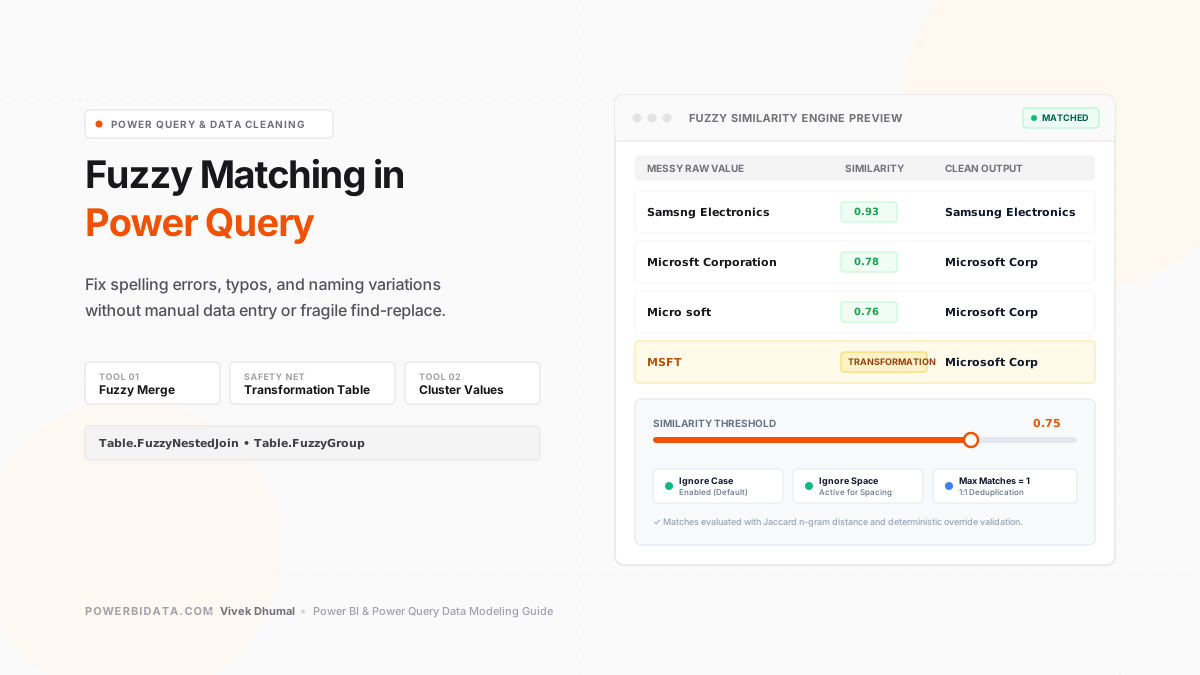
- Fuzzy matching in Power Query lets you merge or group data based on approximate similarity rather than exact text matches — fixing typos, case differences, spacing errors, and name variations without manual correction.
- Two distinct fuzzy matching tools: Fuzzy Merge (matches rows across two tables using approximate text similarity) and Cluster Values (groups similar values within a single column into standardized categories).
- The similarity threshold controls match strictness: The default is 0.80 (80% similarity required). Lower it toward 0.00 for lenient matching; raise it toward 1.00 for stricter matching. There is no universal value — tune it to your dataset.
- Transformation Tables make fuzzy matching production-safe: Hardcode specific overrides (like "MSFT" → "Microsoft Corp") that algorithmic similarity alone would miss or misfire on.
- Direct M Code control: The underlying functions are
Table.FuzzyNestedJoinandTable.FuzzyGroup, fully editable in the Advanced Editor with exposed parameters likeSimilarityColumnName.
Most data cleaning problems have the same root cause: the same entity spelled seventeen different ways. "Microsoft Corp," "Microsft Corporation," "MICROSOFT," "Micro soft" — all the exact same company, yet impossible to group, aggregate, or join on without intervention. Manually correcting thousands of rows in Excel is slow, fragile, and breaks every time a new monthly export arrives.
Fuzzy matching fixes this at the query level, automatically, in a repeatable pipeline that refreshes with your data. This guide covers how to configure it, how to tune the similarity threshold, how to build Transformation Tables for edge cases, and how to write production-grade M code.
What Fuzzy Matching Actually Does
Standard merges in Power Query (and in every standard SQL INNER JOIN or LEFT JOIN) operate strictly on exact equality. "Microsoft Corp" = "Microsoft Corp" matches. But "Microsoft Corp" ≠ "Microsft Corporation" — even though a human analyst instantly recognizes they are the same company. Exact matching has zero tolerance for real-world data entry anomalies.
Fuzzy matching calculates a mathematical similarity score between two text strings — a floating-point number between 0.00 and 1.00 — and treats them as a valid match if that score meets or exceeds your specified threshold. For example, "Microsoft Corp" and "Microsft Corporation" might score around 0.78. If your threshold is set to 0.75, they match. If your threshold is set to 0.85, they fail to match.
The algorithm Power Query utilizes is built upon Jaccard similarity combined with tokenization and character n-gram distance techniques. Strings that share more of the same character subsequences score higher. Crucially, shorter strings with single-character differences score lower than longer strings with the same single-character difference, because the missing letter represents a larger proportion of the total text.
Understanding this mechanic helps you tune thresholds intelligently:
- Long strings with minor typos: A one-letter omission in "Samsng Electronics" (missing 'u') scores around 0.93 because the total string is long and almost all character sequences overlap.
- Short strings or abbreviations: A heavily abbreviated ticker like "MSFT" compared to "Microsoft Corp" scores below 0.30 because almost no letter clusters match. This is exactly where a Transformation Table takes over from mathematical similarity scoring.
The Sample Data Used Throughout This Guide
Every example throughout this tutorial uses a consistent Orders table and Lookup table. The Orders table contains ten rows with intentionally messy corporate names — the typical variations generated by manual data entry, Salesforce text fields, and regional accounting exports.
Orders Table (Messy Raw Input — 10 Rows):
| OrderID | CompanyName_Raw | Revenue | Problem Type |
|---|---|---|---|
| 1 | Microsoft Corp | 45,000 | Exact match |
| 2 | Microsft Corporation | 32,000 | Typo ('o' missing) + Suffix extension |
| 3 | MICROSOFT | 28,000 | All uppercase + missing suffix |
| 4 | Micro soft | 15,000 | Unwanted space inserted |
| 5 | Apple Inc | 38,000 | Exact match |
| 6 | Apple Incorporated | 22,000 | Full legal suffix variation |
| 7 | APPLE INC. | 19,000 | All caps + trailing period |
| 8 | Samsung Electronics | 41,000 | Exact match |
| 9 | Samsng Electronics | 8,000 | Typo ('u' omitted) |
| 10 | Samsung Electrnics | 12,000 | Typo ('o' omitted in Electronics) |
Lookup Table (Canonical Dimension — 3 Rows):
| CompanyID | CompanyName_Clean | Industry |
|---|---|---|
| C-101 | Microsoft Corp | Software & Cloud |
| C-102 | Apple Inc | Consumer Tech |
| C-103 | Samsung Electronics | Hardware & Semiconductors |
The goal: Add a clean CompanyName_Clean column to the Orders table by matching each raw variant against the Lookup table, enabling reliable star-schema relationships and slicers. Without fuzzy matching, standard exact merging fails on 7 out of 10 rows (70% data loss).
Method 1: Fuzzy Merge (Matching Across Two Tables)
Fuzzy Merge is the primary, production-grade technique. It joins two queries while scoring character similarity across key columns.
Step 1: Load Both Tables Into Power Query
In Power BI Desktop, click Home → Transform Data to launch the Power Query Editor. Import both your fact table (Orders) and your dimension/lookup table (Lookup). Both queries will appear in the left-hand Queries pane.
Step 2: Start the Merge From the Orders Query
Select the Orders query in the left pane. In the Home ribbon, click Merge Queries (or select Merge Queries as New if you want to keep the raw fact query isolated).

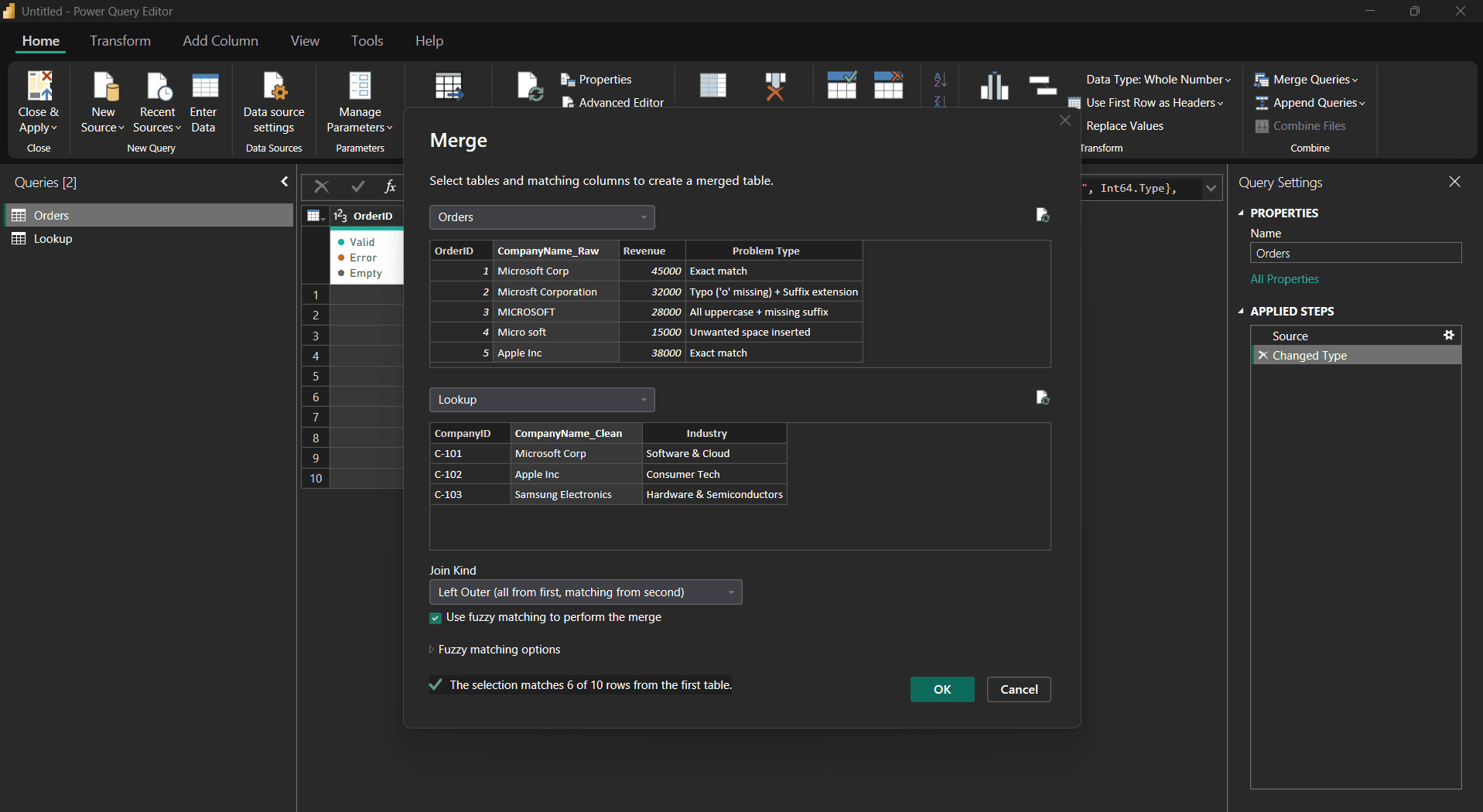
Step 3: Configure the Fuzzy Merge Keys
In the Merge dialog:
- Top table: Click the
CompanyName_Rawcolumn header in the Orders preview. - Bottom table: Select
Lookupfrom the dropdown, then clickCompanyName_Clean. - Join Kind: Select Left Outer (all from first, matching from second). This guarantees no sales rows are lost, even if a name fails to match.
- Enable Fuzzy Matching: Check the box labeled Use fuzzy matching to perform the merge.
Step 4: Configure the Fuzzy Matching Options
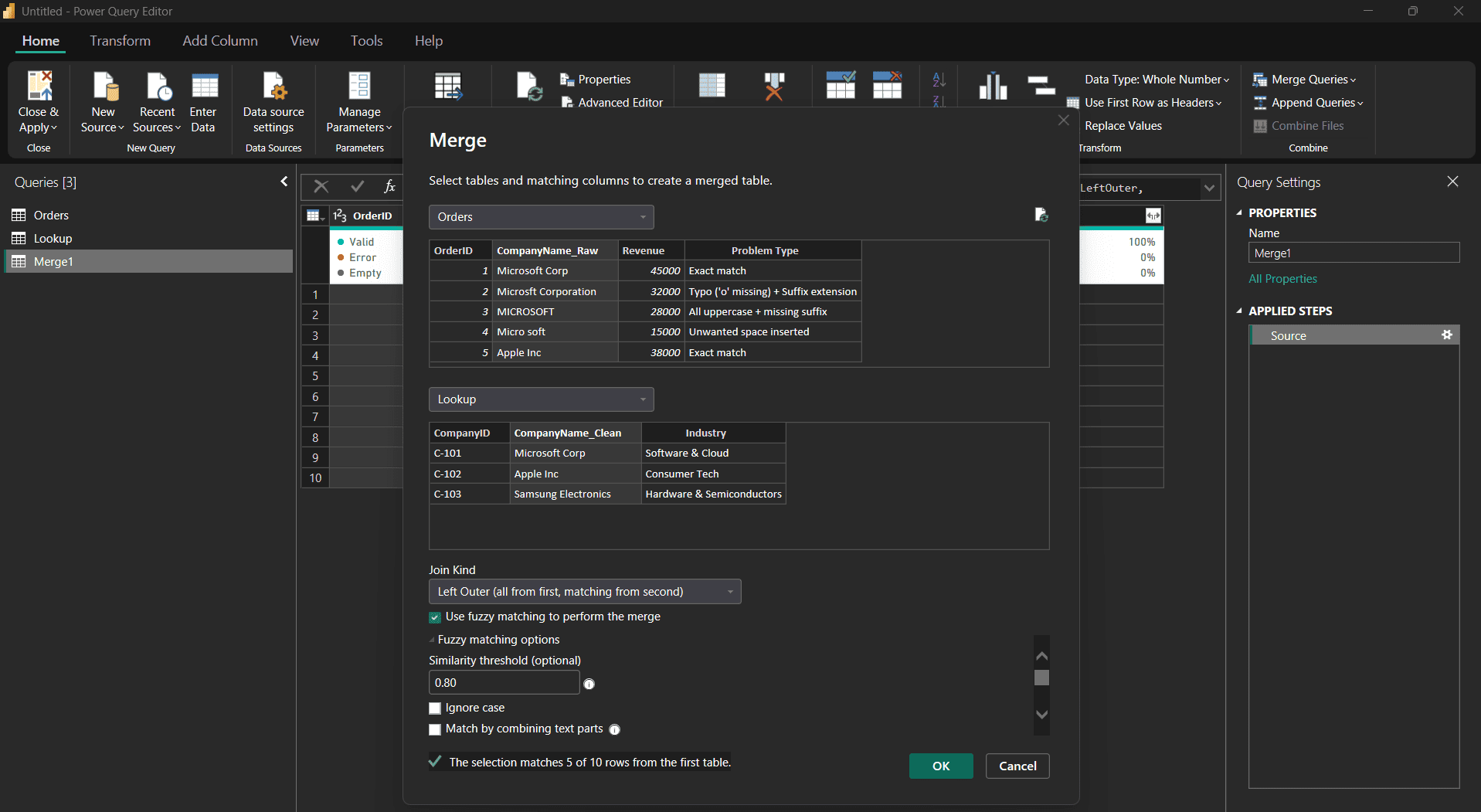
Expand the Fuzzy matching options section. Five controls determine how lenient or strict Power Query will be:
The minimum similarity percentage required for a match. 0.80 catches single-character typos in moderate-length words ("Samsng Electronics" ≈ 0.93). For datasets with multi-word variations like "Apple Incorporated" vs "Apple Inc", adjust this to 0.75. Never drop below 0.60 without strict manual verification, or unrelated names will false-match.
Always leave this enabled. It treats "MICROSOFT" and "Microsoft" identically before computing similarity. Case differences almost never represent different business entities.
When enabled, all whitespace is stripped before comparison. Checking this allows "Micro soft" to match "Microsoft" instantly without penalizing the similarity score. Highly recommended for customer/vendor data.
Splits multi-word strings into tokens and checks permutations. Useful when words arrive reversed (e.g. "Electronics Samsung" vs "Samsung Electronics").
Limits the number of lookup rows returned for each source row. For entity deduplication, always keep this at 1. If increased, a messy name scoring similarly against two lookup names will duplicate your fact row!
Step 5: Click OK and Review the Result
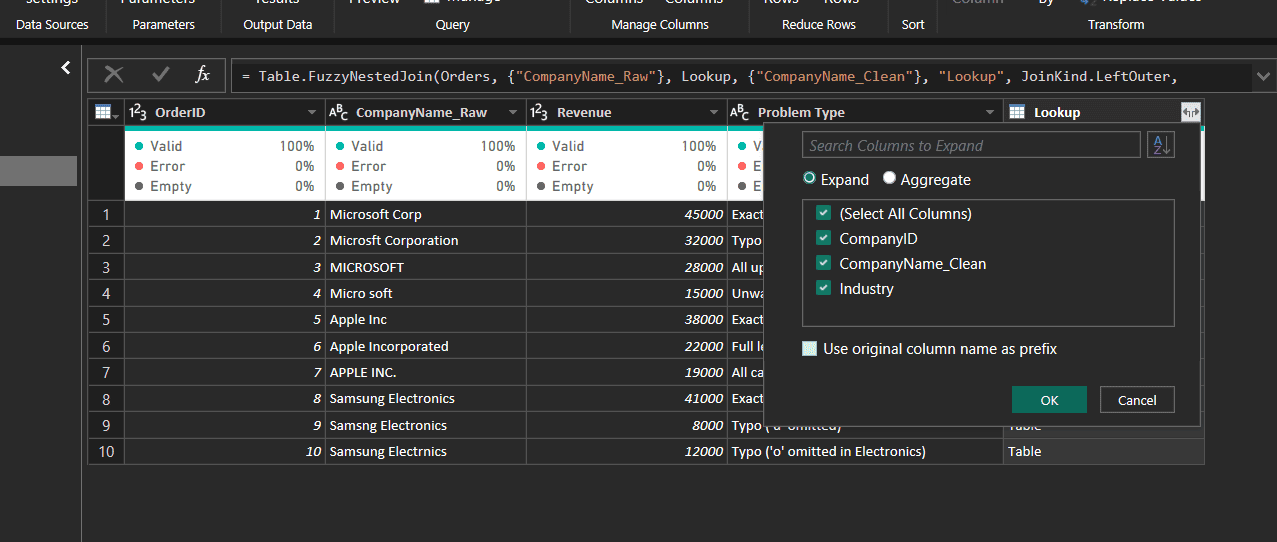
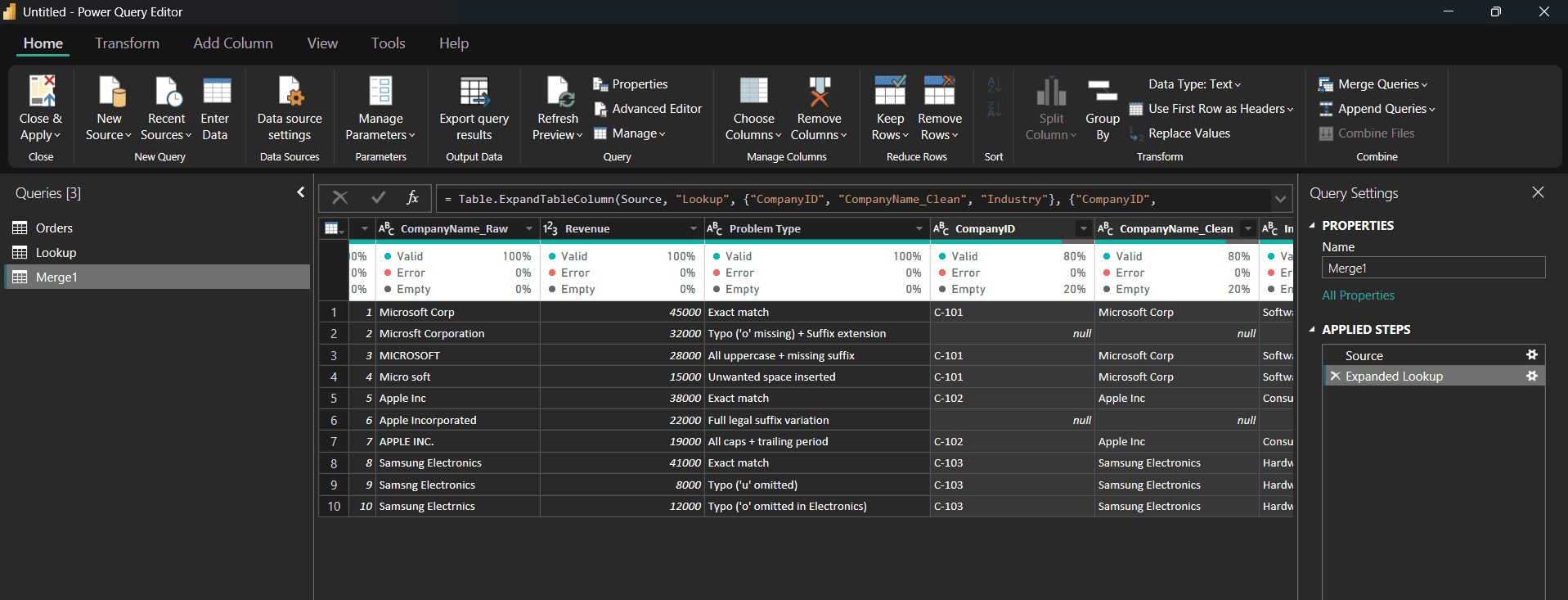
Click OK. Power Query performs the fuzzy join and appends a new column containing nested Table objects for each row in Orders.
Step 6: Expand the Matched Column
Click the Expand icon (↔) at the top right of the new column header. Select CompanyName_Clean, uncheck "Use original column name as prefix", and click OK. The clean company names now appear directly alongside your sales metrics.
Step 7: Handle Unmatched Rows (Nulls)
Filter the CompanyName_Clean column for null. Any null row represents a text string that failed to reach your threshold. For production queries, do not leave these unhandled:
- If legitimate variations are missing, lower the threshold slightly (e.g., from 0.80 to 0.75).
- If they are abbreviations (like "MSFT"), feed them into a Transformation Table (covered in Method 2).
- Create an exception branch in Power Query that routes nulls to an "Unmatched Exceptions" table for data governance review.
Step 8: Rename and Clean Up
Remove the original messy column (or rename it to CompanyName_Original for auditing), verify numeric data types for Revenue, and click Home → Close & Apply.
Method 2: The Transformation Table — Making Fuzzy Matching Production-Ready
Algorithmic similarity scoring excels at typos and minor formatting flaws. However, it completely fails on domain abbreviations, acronyms, and structural renames. For example, "MSFT" and "Microsoft Corp" share almost zero character n-grams. Lowering the similarity threshold down to 0.25 to catch "MSFT" would cause catastrophic false positives across your entire dataset.
A Transformation Table provides a deterministic safety net. It allows you to specify explicit from-to mapping overrides that Power Query applies prior to or in conjunction with similarity evaluation.
What a Transformation Table Looks Like
Create a separate query in Power Query named TransformationTable. It must contain exactly two columns named From and To:
| From | To |
|---|---|
| MSFT | Microsoft Corp |
| MS Corp | Microsoft Corp |
| AAPL | Apple Inc |
| Samsung Electronics Co. | Samsung Electronics |
How to Add the Transformation Table to Your Fuzzy Merge
Re-open your Fuzzy Merge step by clicking the gear icon beside Merged Queries in the Applied Steps list. In the Transformation table dropdown, select your TransformationTable query and click OK.
Method 3: Cluster Values (Grouping Within a Single Column)
While Fuzzy Merge joins two separate queries, Cluster Values operates internally on a single column within a single table. It analyzes string proximity and automatically replaces variations with a single representative cluster value.
Step 1: Select the Column to Cluster
Click the header of your messy column (e.g. CompanyName_Raw) in the Power Query data preview.
Step 2: Open Cluster Values
In the ribbon, navigate to Transform → Cluster Values (note: this is in the Transform tab, not the Home tab).
Step 3: Configure Threshold and Destination
Enter a new column name (such as CompanyName_Clustered) and set your similarity threshold. Power Query groups the similar rows and replaces variations with the cluster representative.
The M Code Behind Fuzzy Matching
When you configure fuzzy joins through the UI, Power Query generates the Table.FuzzyNestedJoin or Table.FuzzyJoin M functions. Opening the Advanced Editor reveals powerful options not exposed in the visual dialog.
Fuzzy Merge M Code with Match Scoring
let
    Source = Orders,
    #"Merged Queries" = Table.FuzzyNestedJoin(
        Source,
        {"CompanyName_Raw"},
        Lookup,
        {"CompanyName_Clean"},
        "Lookup",
        JoinKind.LeftOuter,
        [
            IgnoreCase = true,
            IgnoreSpace = true,
            SimilarityColumnName = "MatchScore",
            Threshold = 0.75,
            TransformationTable = TransformationTable,
            MaxMatches = 1
        ]
    ),
    #"Expanded Lookup" = Table.ExpandTableColumn(
        #"Merged Queries",
        "Lookup",
        {"CompanyName_Clean", "MatchScore"},
        {"CompanyName_Clean", "MatchScore"}
    )
in
    #"Expanded Lookup"
Secret Feature: SimilarityColumnName
The Power Query UI does not provide a checkbox to show the numeric similarity score. By inserting SimilarityColumnName = "MatchScore" into the options record in M code, Power Query outputs a decimal score (e.g. 0.93, 0.78) into each nested table. When expanded, you can audit the exact confidence score for every row in your data model!
Fuzzy Group (Cluster Values) M Code
= Table.FuzzyGroup(
    Source,
    "CompanyName_Raw",
    {{"CompanyName_Clustered", each _, type table}},
    [
        IgnoreCase = true,
        IgnoreSpace = true,
        Threshold = 0.80,
        TransformationTable = TransformationTable
    ]
)
Tuning the Threshold: A Practical Decision Guide
Selecting the threshold requires balancing false negatives (failing to match real variations) against false positives (accidentally merging different entities). Use this benchmark guide:
| Variation Type | Real-World Example | Suggested Threshold | Recommended Strategy |
|---|---|---|---|
| Single character missing | "Samsng" vs "Samsung" | 0.80 – 0.90 | Standard threshold handles reliably. |
| Case differences only | "MICROSOFT" vs "Microsoft" | Any (Ignore Case ON) | Keep "Ignore Case" enabled. |
| Extra whitespace | "Micro soft" vs "Microsoft" | Any (Ignore Space ON) | Enable "Ignore Space" in options. |
| Suffix variations | "Apple Incorporated" vs "Apple Inc" | 0.65 – 0.75 | Tune threshold or add to Transformation Table. |
| Ticker / Abbreviation | "MSFT" vs "Microsoft Corp" | Do not use threshold | Always map via Transformation Table. |
| Acronyms | "AWS" vs "Amazon Web Services" | Do not use threshold | Always map via Transformation Table. |
In Practice: A Real Cleaning Scenario
A retail analytics team receives weekly sales exports from three regional ERP systems. Each system stores client names differently — one uses stock abbreviations, one records full legal titles, and the third relies on open text entry. Joining these systems into a unified Star Schema failed on 65% of records with standard joins.
The team implemented an automated Power Query pipeline:
- Combined regional workbooks using the Folder connector into an
Orders_Combinedquery. - Maintained a centralized
Lookup_CustomersExcel table on SharePoint containing canonical IDs and clean names. - Configured a
TransformationTablecontaining 32 recurring company abbreviations (e.g. "GE", "IBM", "P&G"). - Executed a
Table.FuzzyNestedJoinat threshold 0.75 withSimilarityColumnName = "MatchScore". - Routed rows into three audit buckets:
- Score ≥ 0.90: Auto-approved high confidence.
- Score 0.75 – 0.89: Loaded with a "Fuzzy Matched" flag for analyst visibility.
- Score null: Filtered to a lightweight "Unmatched_Exceptions" query that alerts the data steward on weekly refresh.
Over six months of operations, new typos were resolved automatically, while brand new abbreviations were simply appended to the SharePoint Transformation Table without modifying report queries. The unmapped exception rate plummeted from 65% to under 0.4%.
Common Mistakes and How to Avoid Them
1. Leaving threshold at 0.80 without testing
0.80 is a reasonable starting point, not an absolute guarantee. Always verify matches across edge cases and check the null count before publishing reports.
2. Lowering threshold instead of creating a Transformation Table
When an abbreviation like "MSFT" fails to match "Microsoft", novice developers often drop the threshold down to 0.40. This forces hundreds of false positives across unrelated products. Keep the threshold around 0.75–0.80 and use a Transformation Table for shorthand.
3. Using Cluster Values directly in production data models
Cluster Values chooses the cluster name based on frequency. If a typo is more frequent than the correct spelling in your raw data, the typo becomes the final dimension label! Reserve Cluster Values for data profiling.
4. Ignoring new unmatched nulls after dataset refresh
Fuzzy matching is not a permanent set-and-forget fix. New variants arrive continually. Always check or build an exception audit view so unmatched rows don't quietly drop from your KPI dashboards.
Frequently Asked Questions
What is fuzzy matching in Power Query?
Fuzzy matching compares text strings by calculating an approximate similarity score rather than requiring 100% exact character equality. It allows variants like "Microsft Corporation" and "Micro soft" to match canonical entries like "Microsoft Corp", automating typo correction during data import.
What similarity threshold should I use in Power Query?
Start with the default of 0.80 and inspect unmatched nulls. For company names with suffix differences ("Inc" vs "Incorporated"), 0.70–0.75 is typically ideal. For short strings or abbreviations, do not lower the threshold below 0.65; use a Transformation Table instead.
What is the difference between Fuzzy Merge and Cluster Values?
Fuzzy Merge joins two separate queries (a messy fact table and a clean dimension lookup) based on string similarity, giving you complete control over the canonical output. Cluster Values groups values within a single column, automatically picking the most frequent text variant as the representative.
Can I see the similarity score for each matched row?
Yes. While not exposed in the visual dialog, you can add SimilarityColumnName = "MatchScore" to the options record of Table.FuzzyNestedJoin in the Advanced Editor. Expanding this column outputs decimal match scores between 0.00 and 1.00 directly in your table.
What if fuzzy matching creates false positive matches?
Raise the similarity threshold (e.g. from 0.75 to 0.85) to enforce stricter matching. If specific strings are clashing, add deterministic mappings to a Transformation Table, and verify whether disabling "Match by combining text parts" reduces unwanted permutations.
Does fuzzy matching work with non-English text?
Yes. Power Query's fuzzy algorithm evaluates character n-grams and Unicode codepoints across languages. However, languages with longer average word lengths yield higher statistical reliability than languages with very short word lengths where single letter shifts dramatically reduce similarity scores.
Recommended Next Guides & Deep Dives
Continue expanding your Power BI and Fabric architecture knowledge with these closely connected tutorials:
-
Power Query M Language for Beginners
→
Learn how Table.FuzzyNestedJoin and transformation tables work in M.
-
How to Unpivot Messy Spreadsheet Data
→
Normalize messy cross-tabulated reports before fuzzy matching.
-
Automate Monthly Excel Folder Imports
→
Integrate fuzzy matching into automated multi-file ingestion pipelines.
-
Star Schema vs Snowflake Schema in Power BI
→
Clean dimension keys so fact tables link cleanly with single-hop relationships.
-
How to Connect Claude to Power BI
→
Leverage LLMs to assist with entity resolution and prompt-driven modeling.

Vivek Dhumal
BI Consultant
BI Consultant & Power BI Developer
Vivek Dhumal is a dedicated BI Consultant and Data Analyst specializing in Power BI development, DAX calculations, SQL data modeling, ETL automation, and scalable business intelligence solutions.