
Introduction
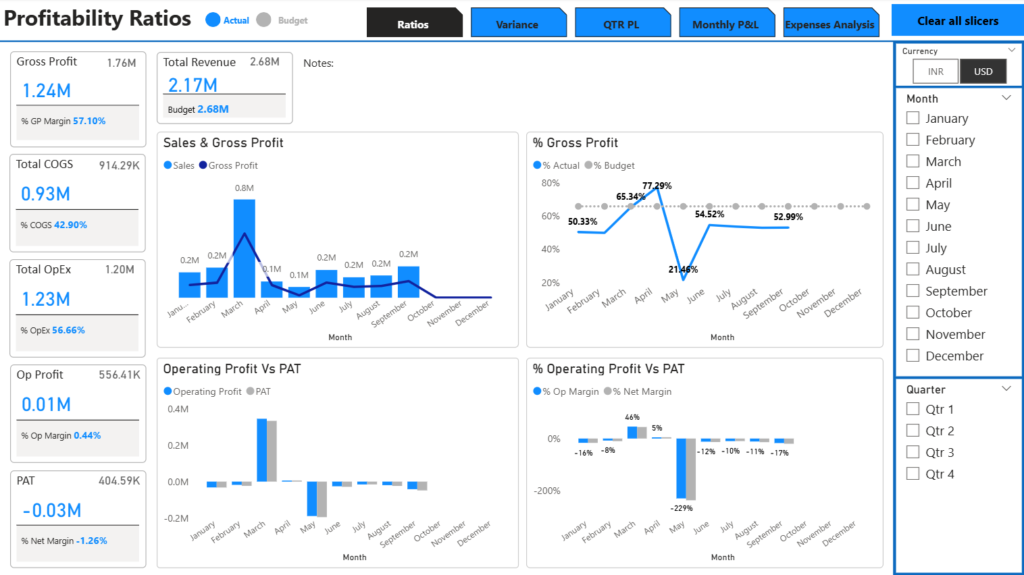
- Introduction
- Want create one for youself
- Step-by-Step: Building the Dashboard (Visual-by-Visual Walkthrough)
- 1. KPI Cards for Key Margins and Variances
- 2. Stacked Column Chart – Revenue & Gross Profit by Month
- 3. Line + Clustered Column Chart – Actual vs Budget
- 4. Waterfall Chart for Profit and Loss Variance Bridge
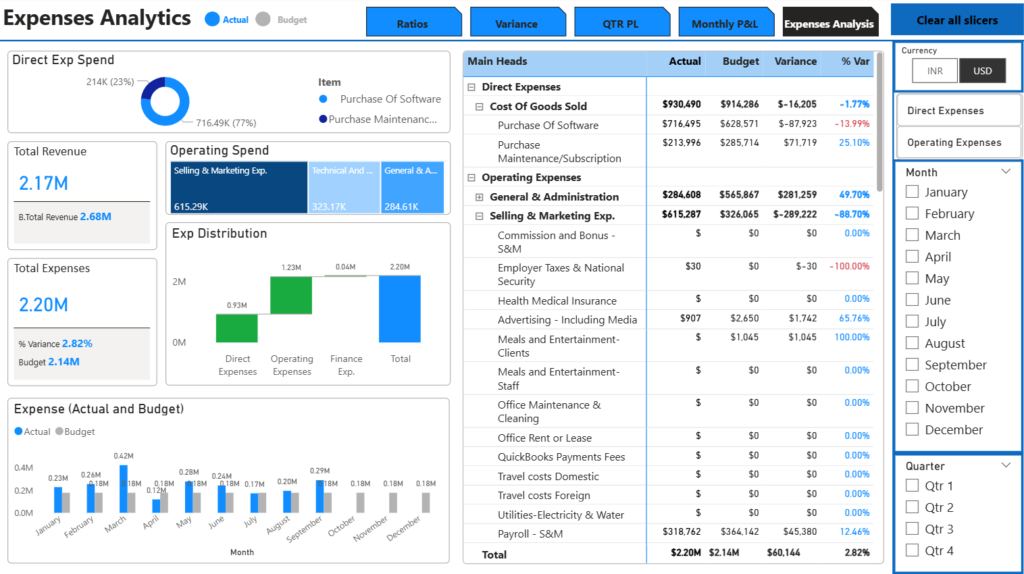
- 5. Matrix/Table for Detailed Profit and Loss (with +/- Hierarchy)
- 6. Donut or Treemap for Expense Breakdown
- 7. Area Chart for Cumulative Performance
- Common Mistakes to Avoid
- Advanced Enhancements (for Next-Level Dashboards)
- Conclusion
- Step-by-Step: Building the Dashboard (Visual-by-Visual Walkthrough)
Imagine this: It’s the end of the month, and your finance team is buried in Excel spreadsheets. Multiple versions of the same Profit and Loss report are floating around, each with slightly different numbers because someone forgot to update a formula. Leadership is frustrated—they can’t quickly compare actuals against budget, drill into variances, or spot trends that could signal trouble ahead. This chaos isn’t just inefficient; it’s costing your business real money in delayed decisions and missed opportunities.
Enter the Profit and Loss dashboard in Power BI. As a seasoned Power BI consultant with over a decade of experience crafting financial dashboards for mid-size companies and startups, I’ve seen firsthand how a well-built P&L dashboard transforms financial reporting. It turns static numbers into interactive insights, empowering CFOs, FP&A analysts, and business owners to make data-driven decisions on the fly. Whether you’re tracking revenue growth in a scaling startup or monitoring cost controls in a mature business, a P&L dashboard in Power BI provides a single source of truth that’s always up-to-date and accessible from anywhere.
In my work with clients like a fast-growing e-commerce firm that reduced month-end close time by 50% after implementing one, the difference is night and day. Traditional Excel setups buckle under growing data volumes, but Power BI scales effortlessly, handling millions of rows with ease. Plus, its interactivity—think clickable variances that reveal underlying drivers—makes variance analysis a breeze, turning “what happened?” into “why did it happen and what do we do next?”
By the end of this guide, you’ll have a clear roadmap to build your own powerful Profit and Loss dashboard in Power BI. We’ll cover everything from data modeling to visual design, with real-world examples drawn from my projects. You’ll learn the must-have components, step-by-step building instructions, and common pitfalls to avoid. If you’re an FP&A analyst tinkering with Power BI or a CFO seeking better visibility, this article will equip you with substantial knowledge. And if it feels overwhelming? That’s okay—many realize a production-grade dashboard requires expert polish. Stick around, and you’ll see why Power BI is the go-to for modern financial reporting.
(Word count: 312)
Why You Need a Dedicated P&L Dashboard in Power BI (Instead of Excel)
Excel has been the workhorse of financial reporting for decades, but as businesses grow, its limitations become glaring. I’ve consulted for countless companies where Excel-based P&Ls led to errors, delays, and frustration. Switching to a dedicated P&L dashboard in Power BI isn’t just an upgrade—it’s a necessity for staying competitive in 2025.
Let’s break it down with a side-by-side comparison:
| Feature | Excel | Power BI |
|---|---|---|
| Speed | Slow with large datasets; manual refreshes | Lightning-fast queries on millions of rows; automatic data refresh |
| Scalability | Struggles beyond 100k rows; crashes often | Handles enterprise-scale data effortlessly |
| Interactivity | Limited to basic filters and pivots | Drill-downs, slicers, and dynamic visuals |
| Single Source of Truth | Multiple file versions lead to confusion | Centralized model; everyone sees the same data |
| Mobile Access | Poor on phones; no real-time updates | Responsive apps for iOS/Android; live data |
| Collaboration | Email attachments and version control hell | Shared workspaces with role-based access |
| Cost | Free (but hidden costs in time/errors) | Affordable licensing; high ROI |
In real-world scenarios, I’ve seen Excel pitfalls firsthand. For instance, a mid-size manufacturing client had “multiple versions of truth” because each department maintained its own spreadsheet. Manual updates took days every month, and without easy drill-downs, spotting why gross margins dipped was guesswork. Trends? Forget it—comparing year-over-year data meant tedious copy-pasting.
A Power BI financial dashboard changes all that. It enables faster month-end closes by automating data pulls from ERPs like QuickBooks or SAP. Better variance analysis means you catch issues early, like unexpected spikes in marketing spend. In one startup project, implementing actual vs budget comparisons in Power BI helped detect margin erosion from rising supplier costs, saving them $150k annually.
The business impact is profound. Quicker insights lead to proactive decisions—adjusting budgets mid-quarter or reallocating resources to high-margin products. For finance managers and startup founders, this means less time wrestling data and more time strategizing. If you’re still relying on Excel for Power BI profit and loss reporting, you’re missing out on these efficiencies. It’s time to level up to a tool designed for interactive, scalable financial dashboards in Power BI.
Key Components of an Executive-Grade Profit and Loss Dashboard
Building an executive-grade Profit and Loss dashboard in Power BI requires more than slapping charts on a page. It demands thoughtful design that delivers at-a-glance insights while allowing deep dives. Based on my experience with 50+ dashboards, here’s what separates good from great.
Must-Have Elements
These are non-negotiable for any robust P&L dashboard in Power BI:
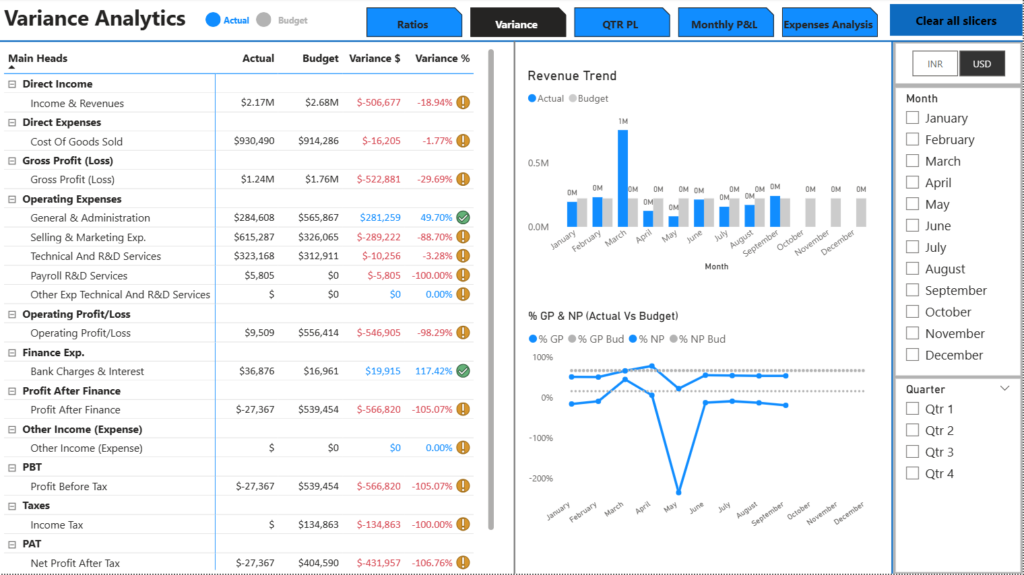
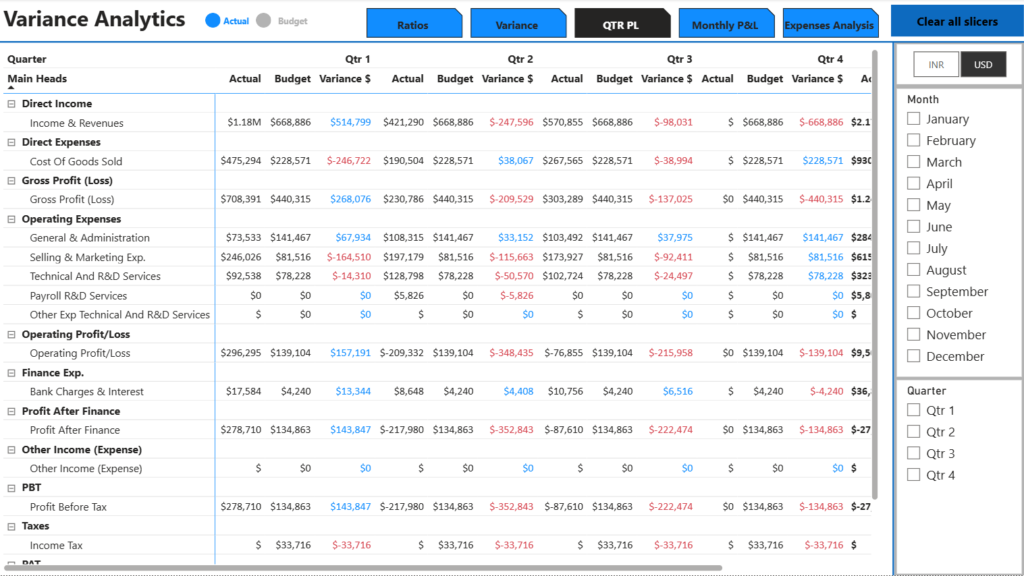
- Actual vs Budget vs Forecast Comparison: Show side-by-side bars or lines for quick variance spotting. In a SaaS client example, this revealed a 15% revenue shortfall due to delayed deals.
- Variance $ and % (with Conditional Formatting): Calculate differences and highlight reds for unfavorable variances. Use icons like arrows for visual pop—green up for positive, red down for negative.
- Month-over-Month & Year-over-Year Trends: Line charts tracking changes help identify patterns, like seasonal expense spikes in retail businesses.
- Gross Margin %, Operating Margin %, Net Margin %: KPI cards displaying these ratios with benchmarks. For a startup, we set alerts if gross margin drops below 60%.
- Top Revenue Streams Breakdown: Pie or bar charts showing contributions from products/services. Drillable to sub-categories for deeper analysis.
- Top 5–10 Expense Drivers (Drillable): Treemaps or tables listing major costs like payroll or rent, with hierarchy for drilling into details.
- Waterfall Chart for Variance Explanation: Bridge actual to budget, breaking down drivers like volume vs price effects. In a real project, this clarified why net profit missed targets by isolating COGS overruns.
- KPI Cards with Conditional Formatting: Summarize key metrics like total revenue or EBITDA, color-coded based on thresholds.
- Currency Toggle (INR/USD or Multi-Currency): Slicers for switching currencies, essential for global firms. We implemented this for an Indian exporter handling USD and INR.
- Quarter and Month Slicers: Dynamic filters for time periods, ensuring users can slice data without rebuilding visuals.
Nice-to-Have Elements
These elevate your dashboard from functional to fantastic:
- Headcount & Payroll Evolution: Line charts showing employee growth tied to labor costs, useful for HR-finance alignment.
- Revenue by Customer/Product Line: Matrices for segment analysis, like top clients contributing 80% of revenue (Pareto principle in action).
- Deferred Revenue Schedule: Tables tracking unearned income, critical for subscription-based businesses.
- Run-Rate Projections: Forecast lines extending current trends, helping predict year-end outcomes.
- Commentary / Narrative Boxes: Text boxes for FP&A notes, like “Variance due to one-time marketing campaign.”
Incorporating these in your Power BI financial reporting ensures the dashboard isn’t just data—it’s a decision-making tool. For variance analysis in Power BI, focus on interactivity; users should click a variance and see why. In my consulting, these components have helped CFOs present to boards with confidence, turning complex finances into clear stories.
Recommended Data Model for a Robust Profit and Loss Dashboard
A solid data model is the foundation of any effective Profit and Loss dashboard in Power BI. Without it, your visuals will be clunky and error-prone. I always advocate for a star schema approach—it’s simple, performant, and scalable for financial data.
In star schema, a central fact table connects to dimension tables like spokes on a wheel. This minimizes joins and speeds up queries.
Important Tables
- Fact Table: GL Transactions / P&L Lines: Core table with rows for each transaction. Columns: Date, Account ID, Amount (signed: + for revenue, – for expenses), Currency, etc.
- Calendar Table: For time intelligence. Include columns like Year, Quarter, Month, Fiscal Year. Use DAX to mark it:
Mark as Date Table. - Account / Chart of Accounts Table (with Hierarchy): Lists accounts with levels: Income > Revenue Streams; Expenses > COGS > OpEx. Enables drill-downs.
- Budget/Forecast Table: Similar structure to fact table but with budgeted amounts. Relate via Account and Date.
- Currency Conversion Table (if Multi-Currency): Rates by date and currency pair, for toggling between INR/USD.
Signage is crucial: Positive for inflows (revenue), negative for outflows (expenses). This simplifies aggregations—total P&L is just SUM(Amount).
Creating Proper Measures
Measures are where the magic happens in Power BI profit and loss dashboards. Use DAX for dynamic calculations.
Key measures table:
| Measure Name | DAX Formula | Purpose |
|---|---|---|
| Actual | SUM(‘GL Transactions'[Amount]) | Total actuals |
| Budget | SUM(‘Budget'[Budget Amount]) | Total budgeted |
| Variance $ | [Actual] – [Budget] | Dollar difference |
| Variance % | DIVIDE([Variance $], [Budget], 0) | Percentage difference |
| YoY Growth | CALCULATE([Actual], SAMEPERIODLASTYEAR(‘Calendar'[Date])) – [Actual] | Year-over-year change |
For margins:
- Gross Profit = [Revenue] + [COGS] (Since COGS is negative, this adds correctly)
- Gross Margin % = DIVIDE([Gross Profit], [Revenue])
- Op Margin % = DIVIDE([Operating Profit], [Revenue]) (Where Operating Profit = [Gross Profit] + [OpEx])
In a recent project for a tech startup, this model handled multi-currency seamlessly, converting everything to USD on the fly. Relate tables properly: One-to-many from dimensions to facts. Avoid bidirectional filters unless necessary to prevent ambiguity.
This setup supports actual vs budget in Power BI effortlessly. If your data comes from multiple sources, use Power Query to clean and append. With this model, your P&L dashboard becomes robust and future-proof.
GET IN TOUCH
Want create one for youself
Step-by-Step: Building the Dashboard (Visual-by-Visual Walkthrough)
Assuming your data is loaded and the model is set (as outlined earlier), let’s build the Profit and Loss dashboard in Power BI. I’ll walk you through major visuals with numbered steps, including real-world tips from my projects. Focus on usability—make it intuitive for executives.
1. KPI Cards for Key Margins and Variances
KPI cards provide quick hits.
- Drag a Card visual to the canvas.
- Set the field to your [Gross Margin %] measure.
- Add conditional formatting: Data color > Rules > If below 50%, red; above 60%, green.
- Repeat for Operating Margin %, Net Margin %, Variance $.
In a client dashboard for a retail chain, we added trend arrows using UNICODE characters in custom labels for at-a-glance direction.
2. Stacked Column Chart – Revenue & Gross Profit by Month
Visualize buildup.
- Insert Stacked Column Chart.
- Axis: ‘Calendar'[Month-Year]; Legend: Account Category (Revenue, COGS).
- Values: [Actual].
- Enable data labels and tooltips for exact values.
For a manufacturing firm, we used small multiples to split by product line, revealing which segments drove gross profit.
3. Line + Clustered Column Chart – Actual vs Budget
Core comparison for variance analysis in Power BI.
- Choose Line and Clustered Column Chart.
- Column values: [Actual]; Line values: [Budget].
- Shared axis: ‘Calendar'[Month].
- Add [Variance %] as a secondary line with markers.
- Format: Sync slicers for quarter/month.
In one startup example, this chart highlighted a budget overrun in Q3, prompting cost cuts.
4. Waterfall Chart for Profit and Loss Variance Bridge
Explains “why” behind variances.
- Insert Waterfall Chart.
- Category: Account Hierarchy (Revenue, COGS, OpEx, etc.).
- Breakdown: [Variance $].
- Set increases green, decreases red.
For an e-commerce client, this bridged a $200k net variance, pinpointing marketing overspend.
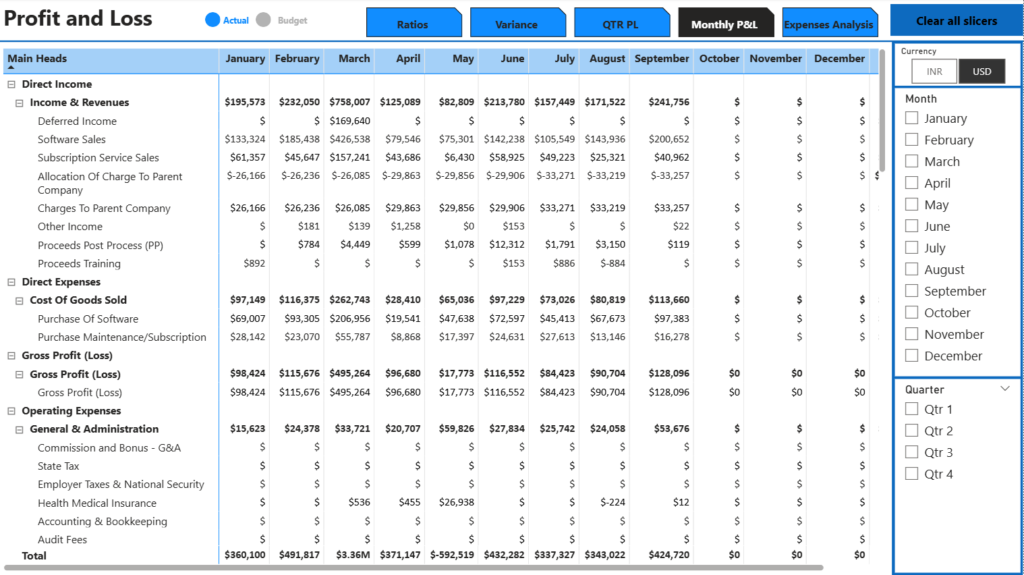
5. Matrix/Table for Detailed Profit and Loss (with +/- Hierarchy)
The workhorse visual.
- Add Matrix visual.
- Rows: ‘Accounts'[Hierarchy].
- Values: [Actual], [Budget], [Variance $], [Variance %].
- Enable row subtotals and conditional formatting on variances.
- Add expand/collapse for drill-down.
We customized tooltips in a fintech project to include YoY comparisons.
6. Donut or Treemap for Expense Breakdown
Break down drivers.
- Choose Treemap.
- Group: ‘Accounts'[Expense Category].
- Values: ABS([Actual]) (To show positives).
- Color saturation based on variance.
For a SaaS company, this revealed payroll as 40% of OpEx, leading to efficiency reviews.
7. Area Chart for Cumulative Performance
Show progression.
- Insert Area Chart.
- Axis: ‘Calendar'[Month].
- Values: Cumulative [Actual] using DAX: TOTALYTD([Actual], ‘Calendar'[Date]).
- Add budget line for comparison.
Formatting tricks: Use bookmarks for toggling views (e.g., Actual/Budget). Custom tooltips with explanations. For mobile, create a phone layout with stacked visuals. Small multiples for department splits.
In building these for clients, the key is iteration—test with users to ensure intuitiveness. Your P&L dashboard in Power BI will now be interactive and insightful.
Common Mistakes to Avoid
Even experienced users trip up when building a financial dashboard in Power BI. I’ve seen these errors in audits, and they can undermine trust in your reports.
Wrong signage in the data model is a killer. If revenues are negative or expenses positive, all calculations flip. Always standardize in Power Query: Multiply expenses by -1 if needed.
Not using hierarchies in accounts leads to flat, un-drillable visuals. Build them in the model—group under Income, Expenses—for easy navigation.
Overloading visuals causes “death by chart.” Stick to 6-8 per page; use pages or bookmarks for depth. In one project, simplifying reduced executive confusion.
Ignoring mobile layout means half your users (on phones) get a mess. Use the mobile view in Power BI Desktop to optimize.
No version control on budgets creates chaos. Tag budgets with dates or scenarios in the table to avoid overwriting.
Hard-coding values instead of measures is amateur. Use DAX for everything—it’s dynamic and error-proof.
Avoid these, and your Power BI profit and loss dashboard will be reliable. If you’re spotting these in your setup, it might be time for a pro review.
Advanced Enhancements (for Next-Level Dashboards)
Once basics are solid, amp up your P&L dashboard in Power BI with advanced features.
What-if analysis: Add a parameter slicer for target margins. DAX: Adjusted Revenue = [Revenue] * (1 + WhatIf[Value]). Simulate scenarios like “What if costs rise 10%?”
Scenario comparison: Use disconnected tables for Budget, Forecast, Actual. Slicers switch measures dynamically.
Drill-through pages: Right-click setup for department or product details, keeping main page clean.
Power BI composite models: Live connect to ERP like Dynamics 365 for real-time data without full imports.
AI visuals & key influencers: Insert Key Influencers to auto-analyze variance drivers, like “High marketing spend influences low margins.”
In a recent client build, these turned a static report into a predictive tool, forecasting run-rates with AI. Elevate your financial reporting in Power BI to strategic levels.
Conclusion
A well-built Profit and Loss dashboard in Power BI isn’t just a report—it’s a window into your business’s health, enabling faster, smarter decisions. From spotting variances early to projecting trends, it empowers FP&A analysts, finance managers, and founders with actionable insights. As we’ve covered, starting with a robust data model, incorporating key components, and avoiding common pitfalls can get you a functional dashboard.
You can build a decent starter version with this guide—many have. But if you want a production-grade, beautifully designed, scalable dashboard that your board and investors will love—and you want it done in 2–3 weeks instead of 3–6 months—then it usually makes sense to work with someone who has built 50+ of these.
If you’re looking for help designing or building a world-class financial dashboard (P&L, Cash Flow, Balance Sheet, KPI pack, etc.), feel free to reach out. I help growing companies turn messy financial data into clear, actionable insights.
Email: connect@powerbidata.com
Youtube: The Excel Bee
Website: PowerbiData