
Introduction
In today’s data-driven world, Power BI stands out as a leading tool for business intelligence. With over 97% of Fortune 500 companies using Power BI as of 2025, its adoption continues to surge into 2026, reaching a 13% market share in the BI category. At the heart of Power BI’s power lies DAX in Power BI —a formula language that enables custom calculations and dynamic insights.
This guide dives deep into DAX in Power BI, helping you solve real-world problems like aggregating sales data or analyzing trends. Whether you’re a beginner or seeking advanced DAX techniques in Power BI, you’ll find actionable advice here. We’ll cover everything from basics to optimization, backed by reliable sources like Microsoft’s official documentation.
By the end, you’ll know how to write DAX formulas in Power BI efficiently, avoid common pitfalls, and boost your reports’ performance. Let’s get started.
(Suggested image: Power BI interface showing a DAX formula bar. Alt text: “Power BI DAX formula editor screenshot illustrating measure creation.”)
What is DAX in Power BI?
DAX, or Data Analysis Expressions, is a formula language designed for creating custom calculations in Power BI. It works on tabular data models, allowing you to define measures, calculated columns, and tables that respond dynamically to user interactions like filters and slicers.
Unlike Excel formulas, DAX in Power BI references entire columns or tables, not individual cells. This makes it ideal for large datasets. For instance, DAX handles context-aware calculations, adapting to report visuals.
Understanding what is DAX in Power BI is key for data modeling. It integrates seamlessly with Power BI’s relationships, enabling cross-table analysis without complex joins.
Why Use DAX in Power BI?
DAX in Power BI unlocks advanced analytics beyond basic visuals. It supports time intelligence, aggregations, and custom logic, making reports interactive and insightful.
According to industry stats, organizations focusing on Power BI adoption see a 2.5x faster report production rate. DAX helps address search intents like “how to calculate year-over-year growth,” providing genuine value through precise metrics.
Without DAX, you’re limited to static data. With it, you can create dynamic KPIs, forecast trends, and optimize performance—essential for decision-making in 2026’s competitive landscape.
(Suggested image: Infographic comparing Power BI with and without DAX. Alt text: “Infographic on benefits of using DAX in Power BI for data analysis.”)
Basics of DAX Syntax
DAX syntax starts with an equals sign (=), followed by functions, operators, and references. For example: Total Sales = SUM('Sales'[Amount]).
Key elements include table names in single quotes and column names in brackets. Formulas validate on entry, highlighting errors like missing parentheses.
Mastering basics ensures clean code. Use AutoComplete in Power BI Desktop for efficiency.
Common DAX Functions for Beginners
DAX offers over 250 functions. Here are essentials:
- SUM: Aggregates column values. Example:
Total Sales = SUM('Sales'[Amount]). - AVERAGE: Computes mean. Example:
Avg Price = AVERAGE('Products'[Price]). - COUNT: Counts rows. Example:
Product Count = COUNT('Products'[ProductID]). - MIN/MAX: Finds extremes. Example:
Min Stock = MIN('Inventory'[StockLevel]). - FILTER: Applies conditions. Example:
Low Stock = FILTER('Inventory', 'Inventory'[StockLevel] < 100).
These DAX functions for beginners form the foundation for more complex queries.
How to Write DAX Formulas in Power BI
Start in Power BI Desktop’s formula bar. Define measures via the “New Measure” button.
For a simple example: Calculate total revenue with Revenue = SUM('Sales'[Quantity]) * SUM('Sales'[Price]). But better: Use variables for clarity—VAR TotalQty = SUM('Sales'[Quantity]) RETURN TotalQty * AVERAGE('Sales'[Price]).
Test in visuals. How to write DAX formulas in Power BI involves understanding contexts: Row context for calculated columns, filter context for measures.
Link to related content: Check our post on Power BI Basics for setup tips.
Advanced DAX Techniques in Power BI
For pros, advanced DAX techniques in Power BI include iterators like SUMX for row-by-row calculations: Total Cost = SUMX('Sales', 'Sales'[Quantity] * 'Sales'[UnitCost]).
Use CALCULATE for context modification: Blue Revenue = CALCULATE(SUM('Sales'[Amount]), 'Product'[Color] = "Blue").
Virtual relationships via TREATAS enhance flexibility. Optimize with variables to avoid redundant computations.
These techniques handle complex scenarios like custom rankings or dynamic groupings.
(Suggested image: Code snippet of advanced DAX formula. Alt text: “Example of advanced DAX techniques in Power BI using CALCULATE function.”)
DAX Date Functions
DAX date functions enable time-based analysis. Key ones:
- DATE: Creates dates. Example:
DATE(2026, 2, 5). - DATEDIFF: Calculates intervals. Example:
DATEDIFF('Date'[Start], 'Date'[End], DAY). - YEAR/MONTH/DAY: Extracts parts. Example:
YEAR('Date'[Date]). - DATESBETWEEN: Generates date ranges. Example:
CALCULATE(SUM('Sales'[Amount]), DATESBETWEEN('Date'[Date], DATE(2026,1,1), DATE(2026,3,31))). - STARTOFQUARTER: Finds quarter starts.
These are vital for YTD or MoM comparisons in 2026 reports.
Best Practices for DAX in Power BI
Follow best practices for DAX in Power BI to ensure efficiency:
- Use variables for readability:
VAR Result = SUM('Sales'[Amount]) RETURN Result. - Reuse measures to avoid redundancy.
- Format code with DAX Formatter for maintenance.
- Optimize with DIVIDE instead of raw division to handle zeros.
- Test on large datasets early.
Prefer measures over calculated columns for performance. For more, see Microsoft’s DAX guide (external link: learn.microsoft.com/en-us/dax).
Common DAX Errors and How to Fix Them
Common DAX errors include syntax issues like missing parentheses: Fix by checking brackets.
Data type mismatches: Ensure compatible types, e.g., no text in SUM.
Circular references: Avoid self-referencing formulas.
Context errors: Use CALCULATE for transitions. Debug with DAX Studio.
(Suggested image: Error message in Power BI. Alt text: “Common DAX errors in Power BI with troubleshooting tips infographic.”)
FAQs
Conclusion
Mastering DAX in Power BI transforms your data analysis. From basics to advanced DAX techniques, this guide provides tools to create impactful reports in 2026.
Apply these insights to your projects. For optimal results, experiment with real data.
Ready to elevate your skills? Download Power BI Desktop today and start building. Share your DAX tips in the comments below—we’d love to hear them!
For related reading, check Power BI Data Modeling Best Practices.
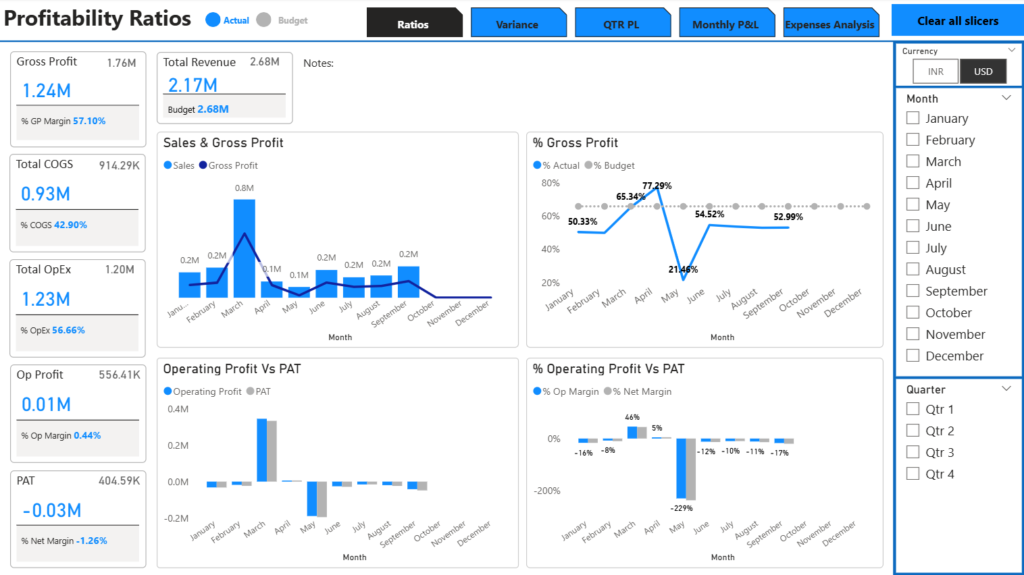
(Suggested image: Power BI report visual. Alt text: “Dynamic Power BI dashboard enhanced by DAX calculations.”)
Author Bio
Vivek is a seasoned data analyst based in Mumbai, India, with over 15 years of experience in business intelligence tools like Power BI. He holds certifications in Microsoft Power BI and has contributed to projects for Fortune 500 clients, focusing on data modeling and optimization. Vivek draws from real-world applications to provide practical insights. No affiliations or sponsorships to disclose. Connect with him on LinkedIn for more data tips.